Using Excel for Marketing Analytics and Reporting
Learn how to use Excel for marketing analytics and reporting to track campaign performance, calculate key metrics, analyse data, and create dashboards for better marketing decisions.
 Aiswarya N
Marketing teams collect data from websites, social media, email campaigns, and paid advertisements. However, collecting numbers is only the first step. Marketers also need to understand what those numbers mean and how they can improve campaign performance.
Microsoft Excel makes this process easier by helping users organise data, calculate marketing metrics, compare campaign results, and prepare reports. With the right formulas and visualisations, even beginners can use Excel for marketing analytics without needing advanced technical skills.
Let’s understand how Excel can help marketers turn campaign data into useful insights.
Why is Excel Useful for Marketing Analytics?
Excel is useful because it brings marketing data into a structured format that is easier to review and analyse. Instead of checking individual campaign reports, marketers can organise key figures in one workbook and compare results across different channels.
Here are some common uses:
- Organising data: Combine information from advertising campaigns, website analytics, email marketing, and CRM platforms.
- Tracking KPIs: Monitor metrics such as clicks, conversions, cost per lead, and return on marketing investment.
- Comparing performance: Identify which campaigns generate more traffic, leads, or sales.
- Preparing reports: Present findings through charts, tables, and dashboards.
This is especially helpful when teams need affordable, flexible tools to support their daily analysis. Excel for marketing analytics can also help small teams identify performance changes before deciding where to adjust their marketing efforts.
Read More:
- Cybersecurity Considerations for Business Analysts
- How Business Analysts Drive Digital Transformation
- Bridging the Gap Between IT & Business as a Business Analyst
How to Use Excel for Marketing Analytics and Reporting
The following practices explain how marketers can organise their data in Excel to make it easier to analyse and report campaign performance:
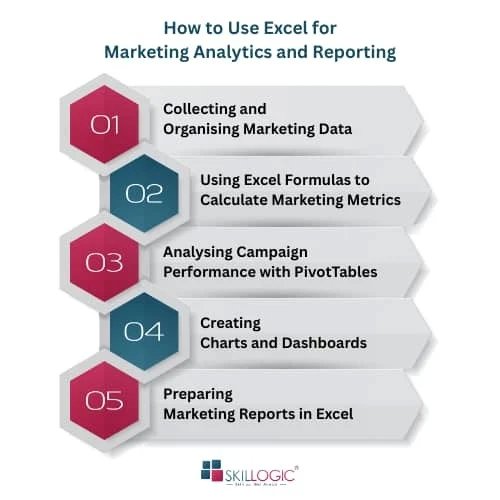
1. Collecting and Organising Marketing Data
Start by collecting the data required for your analysis. Depending on your campaign, this may include website visits, advertising spend, impressions, clicks, leads, and conversions.
You can export data from platforms such as Google Analytics, advertising tools, email marketing software, and CRM systems, then import it into Excel.
Organise the information into columns with clear headings, such as Campaign Name, Channel, Impressions, Clicks, Spend, and Conversions. Remove duplicate entries and check for missing values before calculating metrics.
Data quality matters because inaccurate information can lead to misleading conclusions. According to Salesforce's State of Marketing report, only 1 in 4 marketers are completely satisfied with how they unify and use customer data. This finding highlights why marketers should organise and validate their data before analysing it.
These practices are particularly relevant to marketing analytics in the financial services, where analysing customer behaviour, campaign responses, and product engagement can help financial organisations evaluate their marketing efforts.
2. Using Excel Formulas to Calculate Marketing Metrics
Excel formulas help marketers calculate performance metrics quickly and consistently. Once you understand the basic calculations, you can reuse them across different campaigns.
Some useful formulas include:
- Click-through rate (CTR): Divide clicks by impressions and multiply by 100.
- Conversion rate: Divide conversions by the relevant number of visitors or clicks, depending on how the conversion is defined, and multiply by 100.
- Cost per lead (CPL): Divide campaign spend by the number of leads generated.
- Customer acquisition cost (CAC): Divide the relevant acquisition costs by the number of new customers acquired.
For example, if an advertisement receives 500 clicks from 20,000 impressions, its CTR is 2.5%.
In Excel, if impressions are in cell C2 and clicks are in D2, the formula is =D2/C2*100.
These calculations make marketing analytics in Excel more practical because marketers can compare campaign results using consistent definitions. Always check that the data covers the same period and that costs and conversions are measured consistently.
3. Analysing Campaign Performance with PivotTables
When a worksheet contains data from several campaigns, reviewing every row can take time. PivotTables help summarise large datasets and make comparisons easier.
For example, you can create a PivotTable to:
- Compare advertising spend across marketing channels.
- Summarise leads and conversions by campaign.
- Review monthly performance changes.
- Identify which channels generate the most leads for their cost.
To create one, select your data, choose Insert → PivotTable, and place the relevant fields into the Rows, Columns, Values, and Filters areas.
A PivotTable can show that one channel generates more leads while another delivers conversions at a lower cost. This gives marketers a clearer basis for evaluating campaign performance.
4. Creating Charts and Dashboards
Charts help people understand results without reading through rows of numbers. Excel provides several options for presenting marketing data visually.
- Bar charts: Compare campaign performance or results by channel.
- Line charts: Track website traffic, leads, or conversions over time.
- Pie charts: Show proportions when comparing a small number of categories.
- Conditional formatting: Highlight values that fall above or below selected targets.
You can combine charts, summary metrics, and filters into a dashboard. A marketing dashboard might display total spend, leads generated, conversion rate, and cost per lead in one place.
Effective marketing reporting in Excel should make important changes easy to spot. Keep the layout simple, label each chart clearly, and avoid adding visuals that do not help answer a specific business question.
5. Preparing Marketing Reports in Excel
Marketing reports help teams explain what happened during a campaign and what should happen next. A useful report should include the reporting period, campaign objectives, key metrics, performance against targets, and the main findings.
For example, a monthly report might compare actual leads against the target, highlight the channels with the lowest cost per lead, and identify campaigns that need improvement.
Gartner's CMO Spend analysis reports that 73% of CMOs describe expectations for marketing's contribution to growth as high, very high, or overly ambitious. With pressure to demonstrate results, clear reporting can help marketers explain how campaigns perform and where budgets may need adjustment.
Good marketing reporting in Excel connects the numbers to practical recommendations rather than simply listing results.
Read More:
- How to become a Business Analyst in India
- Business Analytics Scope in India
- How to Become a Business Analytics Expert in India
Advantages and Limitations of Using Excel for Marketing Analytics
Excel helps marketers organise campaign data, measure performance, and identify trends. However, its usefulness depends on the volume of data and the complexity of the analysis.
Here are the main advantages and limitations of using Excel for marketing analytics:
Advantages:
- Organises data from marketing campaigns, website traffic, and customer interactions.
- Uses formulas, filters, PivotTables, and charts to analyse campaign performance.
- Helps compare metrics such as click-through rates, conversion rates, and cost per lead.
- Supports flexible reports for different marketing channels and campaign objectives.
Limitations:
- Manual data imports and updates can slow down regular campaign reporting.
- Formula errors or inconsistent data can lead to inaccurate performance insights.
- Large datasets from multiple marketing channels can become difficult to manage.
- Advanced attribution, automated reporting, and real-time tracking may require dedicated analytics tools.
For example, HubSpot's Marketing Statistics reports that 50% of marketers use conversion rate optimization. This highlights the importance of measuring how effectively marketing activities turn visitors into leads or customers. Excel can help marketers compare conversion rates across campaigns and identify areas for improvement.
Overall, Excel is useful for campaign analysis and performance reporting, particularly for small and moderately sized datasets. However, marketers managing multiple channels or complex customer journeys may need more advanced analytics platforms. AI-driven marketing analytics can further support this work by identifying patterns in large datasets, predicting customer behaviour, and helping marketing teams make more informed campaign decisions.
Tips for Better Marketing Analytics and Reporting in Excel
Follow these tips to analyse marketing data accurately and create reports that support better campaign decisions:
- Organise your marketing data: Keep campaign names, dates, traffic sources, clicks, conversions, and costs in clearly labelled columns.
- Use formulas to calculate key metrics: Calculate click-through rate (CTR), conversion rate, cost per lead, and return on ad spend (ROAS) to measure campaign performance.
- Use PivotTables to compare campaigns: Summarise data by campaign, marketing channel, or month to identify which activities perform better.
- Create charts for easy comparison: Use bar charts to compare campaigns and line charts to track changes in website traffic, leads, or conversions over time.
- Check your data and calculations: Remove duplicate entries, check for missing values, and verify formulas before drawing conclusions from your results.
- Compare results with marketing goals: Check whether campaigns meet their targets for leads, conversions, and spending rather than looking at metrics in isolation.
- Update reports and record insights: Refresh your data regularly and explain what the results mean and what changes could improve campaign performance.
These habits make marketing analytics in Excel more reliable and help teams prepare reports that support better decisions.
In short, Excel helps marketers organise campaign data, calculate performance metrics, compare channels, and communicate results through clear reports. By using formulas, PivotTables, charts, and dashboards correctly, beginners can develop a practical approach to campaign analysis. The key is to work with accurate data, choose relevant metrics, and use the findings to guide meaningful marketing decisions.
SKILLOGIC provides professional training programmes designed to help learners develop practical skills for their career goals. The Marketing Analytics Certification Course covers marketing performance metrics, campaign analysis, customer behaviour, conversion tracking, and dashboard development through hands-on projects and real-world case studies. Learners benefit from expert guidance, an industry-relevant curriculum, and globally recognised IABAC certification. With training centres across India, including Bangalore, Chennai, Coimbatore, Hyderabad, Ahmedabad, Pune, Mumbai, Nagpur, and Delhi, SKILLOGIC offers marketing analytics training for individuals looking to strengthen their analytical skills and understand data-driven marketing decisions.